Bp Premier Required Configuration
UPDATED December 2025
TLDR: BP Premier now requires Configure third party application "Doctors Control Panel (via Halo Connect)" in Best Practice Premier settings instead of "Doctors Control Panel".
From December 2025 , Best Practice Premier requires a configuration change to allow third party applications such as Doctors Control Panel to connect to the Best Practice Premier database. Best Practice Premier now uses Halo-Link as the only method of third party integration. Halo link is the secure integration platform provided by Best Practice Software. From 2026, Best Practice Software will be disabling the older Jade integration method for third party applications i.e. The third party permissions for direct access to sql database. From Mid November 2025, Doctors Control Panel will start prompting users to configure Best Practice Premier for Halo-Link integration if it is not already configured.
Getting Pairing Code from Best Practice Premier (requires admin access in BP)
TLDR: Get pairing code from Best Practice Premier admin settings or the third party utility.
Get Pairing Code from Best Practice Premier Admin Settings (Requires Best Practice Premier version 1.13.1.1096 or later)
Configuration Halo Link requires enabling third party applications in Best Practice Premier settings.
You can request your practice manager / IT support to obtain a pairing code from Best Practice Premier to configure Doctors Control Panel access.
Instruction are provided on the Best Practice Knowledgebase. Best Practice knowledgebase link
TLDR: set up the partner integration access Bp configuration (menu Setup->Configuration)
Click 'Setup third-party integrations' and Select 'Doctors Control Panel(via halo Connect)' from the third-party integrations list.
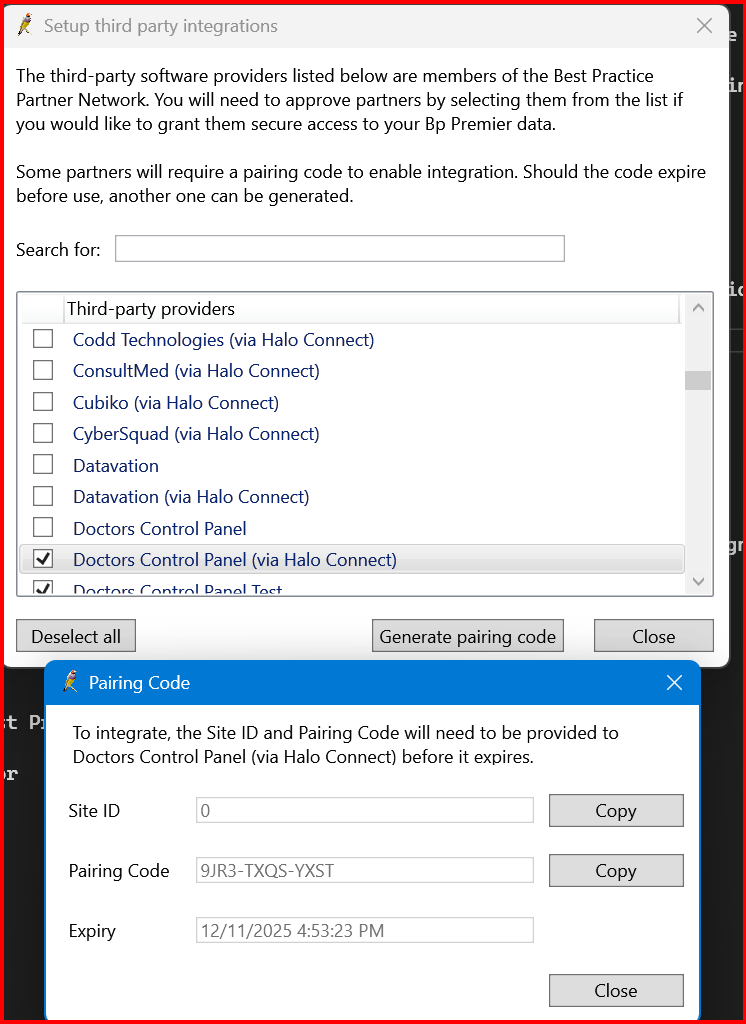
Copy the pairing code shown in Best Practice Premier.
The pairing code will then be required to be passed to users of Doctors Control Panel to complete the configuration. The pairing code will expire in 7 days if not used and can be generated again if required within BP.
Third Party Utility to get Pairing Code (for use on versions of Best Practice Premier prior to 1.13.1.1096)
There is also a third party utility available from Best Practice Software to generate pairing codes for Halo link integration. This utility can be downloaded from the Best Practice Software knowledge base article linked above. This utility also requires admin access to Best Practice Premier to run. It has the same UI and functionality as the built in Best Practice Premier configuration screen.
Configuring Doctors Control Panel with Halo Pairing Code
Paste the code in to the Doctors Control Panel Halo Configuration dialog. The Dialog will appear on DCP start up.
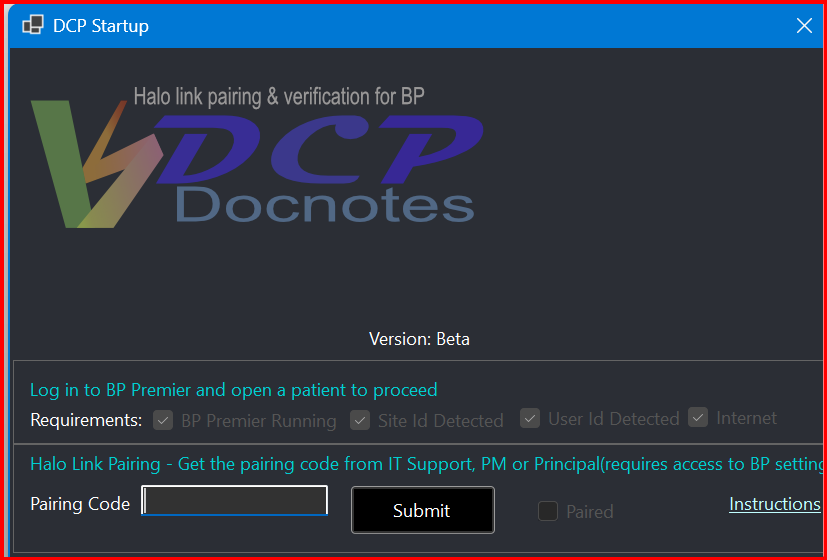
This dialog will need to be completed only once and must be completed within 7 days of generating the pairing code in Best Practice Premier.
The result of successful submision of the pairing code. Will close the dialog and continue DCP startup.
If the dialolg is closed DCP will continue in direct sql access mode but will prompt again on next startup until the pairing code is entered.
Direct sql access mode will be disabled from end of 2025 in Best Practice Software.
The pairing code can be used for all users of the Doctors Control Panel while the Pairing code is active.
The pairing code must be successfully paired at least once.
Configuring Doctors Control Panel after initial pairing when pairing code has expired or not available.
To validate the current user in Doctors Control Panel against Best Practice Premier Halo link integration an alternative method is available when the pairing code is not available.
This method requires the user to have access to Best Practice Premier and be able to login to Best Practice Premier and open patients and enter their DOB into the DCP .